The best notepad extensions for Chrome in 2026
We tried the most popular notepad extensions for Chrome. Here's what each one is best at, who it suits, and what to look for before you install one.
A notepad extension is a small thing that gets used a lot. Pick the right one and writing something down takes two seconds, all day. Pick the wrong one and you’ll stop using it within a week.
There are hundreds of them on the Chrome Web Store, and most look alike in a screenshot. So we tried the popular ones, read their store pages and help pages, and wrote down what each is actually like to live with.
One thing first: we make Leaf, so we’ve put it at the top. We’ve tried hard to be fair to the rest, and to say plainly when another one would suit you better. Everything here is as of November 2026.
What to look for
Before the list, here’s what we think matters most in a notepad for Chrome. It’s worth checking any extension against these, ours included.
- Speed: how long from the moment you click to the moment you can type? A notepad that takes seconds to open will lose to a sticky note.
- Where it opens: a popup in the toolbar is quick. Chrome’s side panel stays open beside your tabs. A new tab page is always there but only when you open a tab.
- Offline: does it open and save with no connection?
- Account: can you just start writing, or do you have to sign up first?
- Getting your notes out: can you export everything, in one go?
- Privacy: where are your notes kept, and are they used to train AI?
The extensions
1. Leaf: best all round notepad
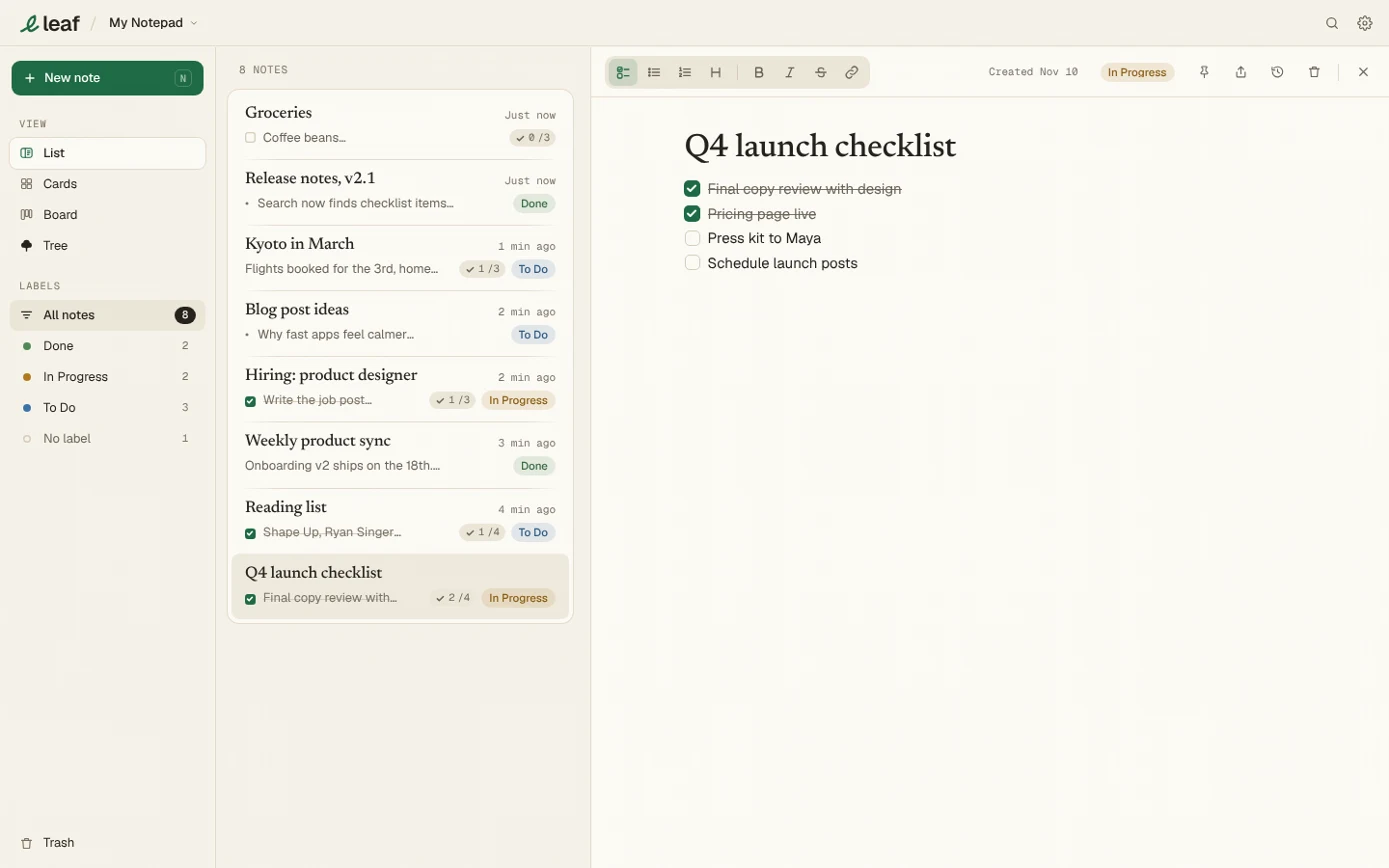
Leaf is a notepad and to-do list that opens from the toolbar, in Chrome’s side panel or in its own tab. It’s been on the Chrome Web Store since 2017 and was carefully redesigned in 2026.
It opens straight to your notes in a fraction of a second, with no sign in, and works offline because notes live on your computer. You write in plain text with markdown that formats as you type, so [] becomes a checkbox and # a heading. Notes can be laid out as a list, as cards, or as a kanban board where each coloured label is a column.
- Best for: people who write lots of small notes through the day and want them close at hand.
- Good to know: free, with no account and no ads. Your notes are never used to train AI, and you can export them all from Settings.
- Not for you if: you need reminders, or free sync between computers. Sync comes with Leaf Pro, at $5 a month.
2. Google Keep Chrome Extension: best if you already live in Keep
Google’s own extension is mostly a way to save things into Keep. Click it to save the page you’re on, or right click a selection or image to send it to Keep. You can add a note and labels as you save.
Keep’s real strength is its phone apps and its place in Gmail, Docs and Calendar, where it sits in the side panel. On a computer, though, Google says Keep doesn’t work offline, and the old Keep Chrome app was retired in 2021, so day to day writing happens at keep.google.com.
- Best for: people whose notes start on their phone and who want to save the odd page from Chrome.
- Not for you if: you want a notepad that opens instantly beside any site, or works without a connection.
We wrote more about this in a Google Keep alternative that lives in Chrome.
3. Papier: best for one page on every new tab
Papier turns your new tab page into a notepad. Open a tab and your notes are there. Its store page says notes are kept in Chrome, with no account and no syncing.
- Best for: a running scratchpad you see every time you open a tab.
- Not for you if: you’d rather keep your new tab page for something else, or want the same notes on more than one computer.
4. Sticky Notes 3.8: best for quick memos in a popup
A sticky note extension that opens from the toolbar. You can keep several notes, give them colours and use basic formatting. It works offline, with no sign up, and keeps notes in your Chrome profile.
- Best for: short memos you want in colour, one click away.
- Not for you if: you want your notes beside the page in the side panel, or on more than one computer. Its store page mentions no sync.
5. Note Sidebar: best for simple notes in the side panel
Note Sidebar puts a notepad in Chrome’s side panel, with rich text, the option to lock a note with a password, and export to a text file. Notes are kept in the browser.
- Best for: someone who wants the side panel and nothing more.
- Not for you if: you want your notes on more than one computer. Its store page says your settings sync, not your notes.
6. Evernote and Notion Web Clippers: best if you already use those apps
These aren’t notepads so much as doorways into bigger apps. Evernote’s Web Clipper saves pages, articles, PDFs and screenshots into your Evernote account, with tags and notebooks. Notion’s Web Clipper saves a page into your Notion workspace, wherever you choose.
- Best for: people who already keep everything in Evernote or Notion and want to save from the web.
- Not for you if: you want to jot something down quickly. Both send you into a larger app to write.
Which one should you choose?
It mostly comes down to how your day goes.
- You write lots of small notes at your computer: Leaf.
- Your notes start on your phone, in Google’s world: Google Keep.
- You want one scratchpad on every new tab: Papier.
- You want simple coloured memos: Sticky Notes 3.8.
- You only want the side panel: Note Sidebar.
- You already live in Evernote or Notion: their Web Clippers.
In Leaf: Leaf is free, with no account, so trying it costs you a minute. If it isn’t for you, removing it takes a moment, and you can export your notes first.
A quick test before you commit
Whichever you pick, give it this test in your first hour:
- Open it from another tab, and time how long until you can type
- Turn off your Wi-Fi, and write a note
- Close it halfway through a sentence, then open it again
- Find the export button
A notepad that passes all four is one you can trust with your thoughts. That’s the whole job.