A Google Keep alternative that lives in Chrome
Google Keep is great on your phone, but on a computer it's a website you have to go and find. Here's what to look for in a notepad built for Chrome, and where Leaf fits.
Google Keep is one of the most popular notes apps there is, and for good reason. It’s free, it’s quick on a phone, and it puts colourful notes and checklists in one tidy grid. If you’re reading this, you may well have years of notes in it.
But many people who love Keep on their phone feel something is missing on their computer. Keep there is a website. You open a tab, go to it, write the note, then go back to what you were doing. It’s fine, but it isn’t close at hand, and close at hand is what a notepad is for.
This post looks honestly at where Keep is strong, where it falls short in Chrome, and what to look for instead. We make Leaf, so we’ll tell you where it fits, and where it doesn’t.
Where Keep shines
Keep does a lot well, and it’s worth saying so before anything else.
- It’s everywhere you have a Google account. Keep has apps for Android and iPhone, and your notes follow you to keep.google.com.
- It’s built into Google’s own apps. In Gmail, Docs, Calendar and the rest of Google Workspace, Keep sits in the side panel, so you can drag a note into a document.
- It has reminders. You can ask a note to remind you at a set time.
- It’s simple. Labels, colours and checklists, and not much else to learn.
If most of your notes start on your phone and you live inside Gmail and Docs, Keep is a sensible home for them.
Where it falls short in Chrome
The trouble starts when your day happens in the browser, across all sorts of sites that aren’t Google’s.
There’s no Keep app for your computer anymore. Google ended support for the Keep Chrome app in early 2021 and pointed people to keep.google.com instead. Today the official Keep extension is mainly for saving things: a page, a selection or an image, sent to Keep with a click.
It doesn’t work offline on a computer. Google’s own help pages say offline access is available in Keep’s phone apps, but not on your computer. On a plane or a bad connection, the website can’t help you.
It sits beside Google’s apps, not beside everything. Keep’s side panel lives inside Gmail, Docs and the other Workspace apps. Reading an article, filling in a form or working in any other site, you’re back to switching tabs.
None of this makes Keep a bad app. It makes it a phone app first, with a website for your computer.
What a Chrome notepad should do
If most of your writing happens on a computer, these are the things worth asking for. They’re the same things we built Leaf around.
It opens instantly, from anywhere
A note should take seconds, including the time it takes to open the notepad. Look for one in your toolbar, with a keyboard shortcut, that opens straight to your notes with no loading screen and no sign in.
It can stay open beside your work
Chrome has a side panel that stays open as you move between tabs. A notepad that runs there sits beside every site you visit, not just Google’s. We wrote a whole guide to notes in the side panel if you’d like to try it.
It works offline
Your notes should open and save with no connection at all. The simplest way to get that is a notepad that keeps your notes on your computer first.
It keeps your notes yours
Read how a notes app treats what you write. Is it stored on your computer or someone’s server? Is it used to train AI? Can you take everything with you in one file?
Where Leaf fits
Leaf is a notepad made for Chrome, and has been since 2017. Here’s how it lines up against that list:
- Opens instantly: click the toolbar button or press Alt Shift L on any tab. Leaf opens straight to your notes, in a fraction of a second, even with hundreds of them.
- Beside your work: open Leaf in Chrome’s side panel and it stays there as you browse.
- Offline first: your notes live on your computer, so Leaf works the same with no Wi-Fi.
- Yours: no account needed, no ads, and your notes are never used to train AI. Export every note in one file whenever you like.
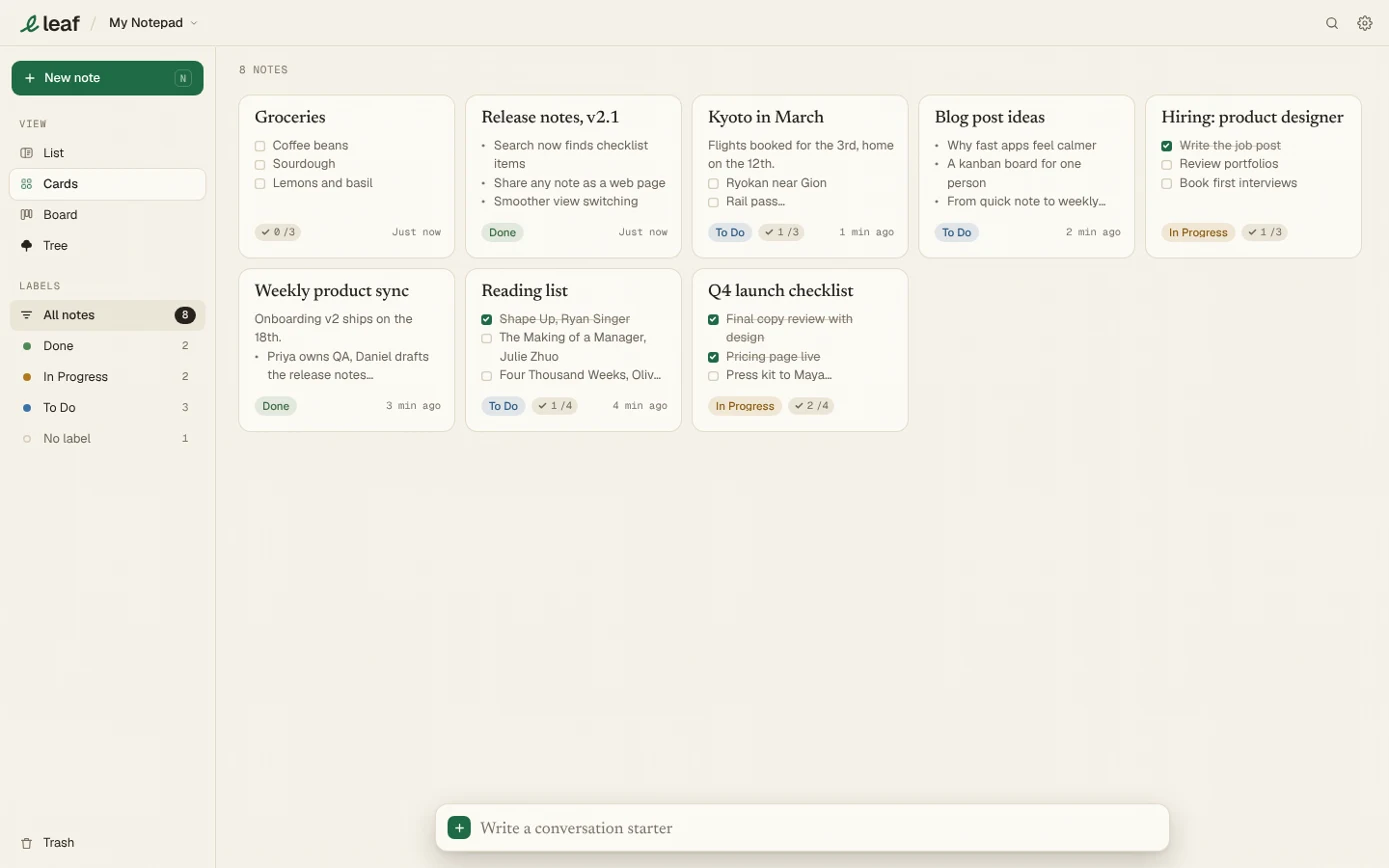
If you like Keep’s grid, Leaf’s Grid view will feel at home: your notes laid out as cards, with coloured labels and checklists that show how many items are ticked. Leaf adds a few things Keep doesn’t have, like a Board view where each label becomes a column you can drag cards across.
In Leaf: Saving from the web works too. Select text on any page, right click and choose Add to Leaf. The quote goes into a note with a link back to the exact passage it came from.
Where Leaf isn’t the right fit
We’d rather you choose well than choose us. Keep may suit you better if:
- You need reminders. Leaf doesn’t have them.
- Your notes start on your phone. Leaf works on a phone through its web app, which you add to your home screen, but your phone and computer stay in step only with Leaf Pro. Keep’s phone apps are free.
- You share notes with others to edit together. Leaf can share a note as a web page anyone can read, but it isn’t built for editing together.
On the free plan, each computer keeps its own notes. Leaf Pro, at $5 a month, adds sync between your computers and your phone, along with separate notepads, version history and unlimited labels.
Moving over, at your own pace
Leaf doesn’t import from Keep, and we don’t think you need to move everything at once. Most people find only a handful of notes they still use. Here’s a calm way to switch:
- Add Leaf to Chrome and write today’s notes there
- Copy over the few Keep notes you open every week
- Leave the rest in Keep, where you can still find them
- If you’d like a full copy, export your Keep notes with Google Takeout
Give it a week. If you find yourself reaching for the toolbar instead of a tab, you’ll know you’ve found your notepad.