How to keep notes open beside any tab in Chrome
Chrome's side panel can hold a notepad next to every page you visit. Here's how to set it up in a minute, and how to make it part of your day.
Writing something down shouldn’t mean leaving what you’re doing. Yet that’s how most notes go: you’re reading an article, or halfway through a form, and a thought arrives. You open a new tab, find your notes app, wait for it to load, write the line, then try to remember where you were.
Chrome has a better place for notes, and most people never use it. It’s the side panel: a column on the right of the window that stays open while you move from tab to tab. Put a notepad there and your notes sit beside whatever you’re doing, all day.
This guide shows you how to set it up with Leaf, and a few ways we’ve seen people make it part of how they work.
What the side panel is
The side panel is a column built into Chrome itself, on the right side of the window. Chrome uses it for things like your reading list and bookmarks, and extensions can live there too.
What makes it good for notes is that it stays put. Switch tabs, scroll, open a new page, and the panel is still there with your note open, exactly where you left it. You read on the left and write on the right, without either one getting in the way of the other.
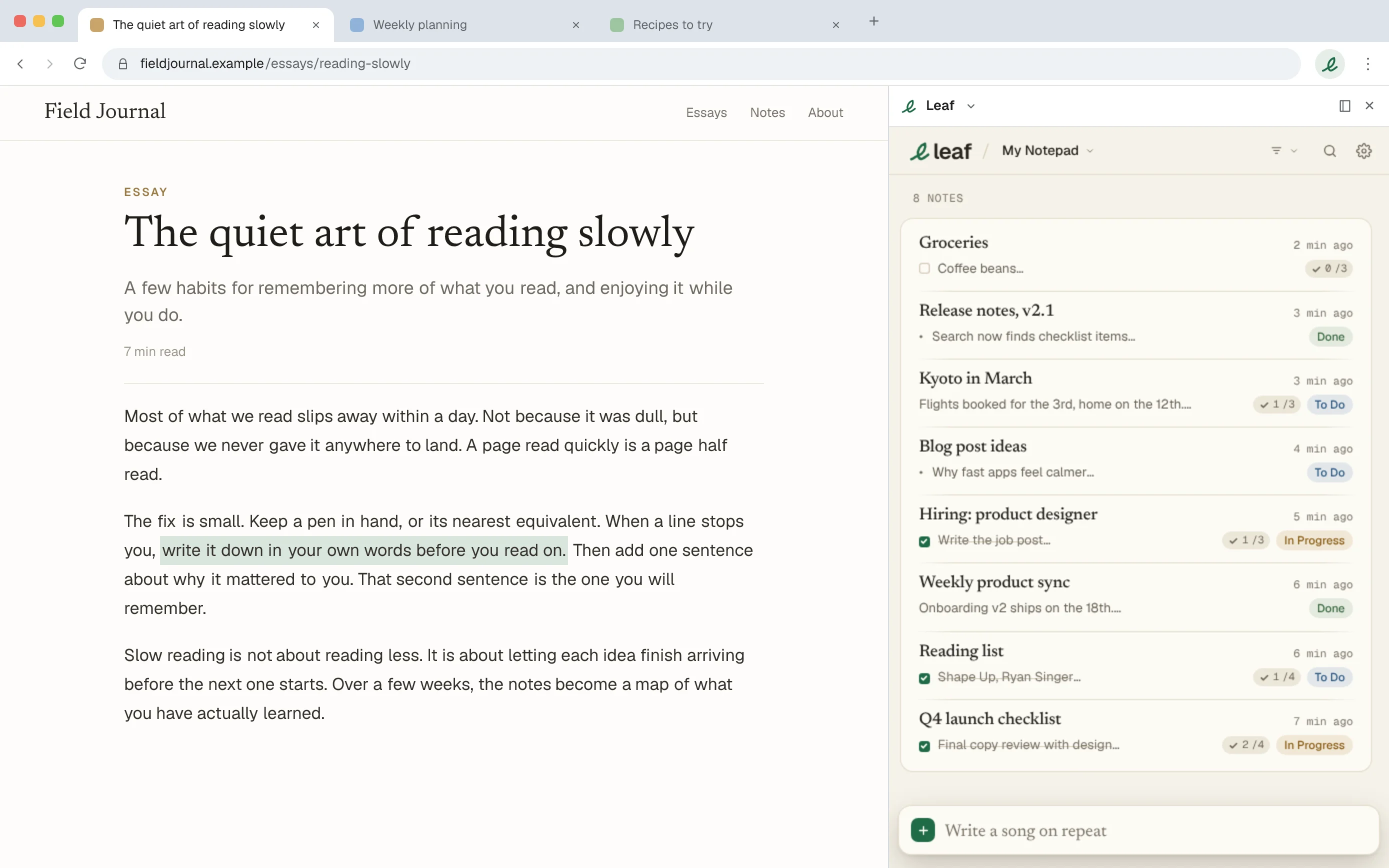
Set it up in a minute
You need a notepad that runs in the side panel. Leaf does, and it’s free with no account, so the whole setup takes about a minute.
- Add Leaf to Chrome from the Chrome Web Store.
- Click the Leaf button in your toolbar, then the side panel button in Leaf’s header. Leaf moves into the panel.
- From now on, press Alt Shift K on any tab to open Leaf in the side panel.
That’s it. Your notes are the same ones you see in the toolbar popup, so nothing needs moving or syncing between the two.
In Leaf: If the side panel becomes your favourite way in, make it the default. Open Settings, then General, and under Leaf icon choose Side panel. Clicking the Leaf button will then open the panel straight away.
If those keys are already taken by another extension, you can pick your own on Chrome’s shortcuts page. Leaf’s Settings has a button that takes you there.
Four ways to use it
A notepad beside your tabs sounds small. In practice it changes the shape of a working day, because the cost of writing something down drops to almost nothing. Here’s how we see people use it.
Research while you read
Reading something worth keeping? Select the passage, right click and choose Add to Leaf. The quote lands in a note with a small link back to its source, and the link takes you to that exact passage on the page, not just the top of it.
Keep the panel open while you read and you can watch the note fill up, then add your own thoughts underneath each quote while they’re fresh.
Meeting notes beside the call
Video calls happen in a tab. With Leaf in the side panel, your notes sit right next to the faces, so you’re never hunting for another window when someone says something you’ll need later.
Start the note with the meeting’s name, then use a checklist for anything you agreed to do. Type [] and a space at the start of a line and it becomes a box you can tick.
A running to-do list for the day
Some people never close the panel. It holds one note called Today, with a short checklist, and it stays in view while they work through their tabs. A list you can see is a list you actually finish.
Drafting before you send
Writing a careful reply to a long email? Draft it in the panel while the thread stays open on the left. You can read what you’re answering and shape what you’ll say at the same time, then paste it in when it’s ready.
Make the panel yours
The side panel is narrow, so a notepad there should stay out of its own way. Leaf is built for that: it opens in a fraction of a second, works without Wi-Fi, and saves as you type. A few touches help it fit the way you write:
- Markdown as you type: start a line with
#for a heading,-for a bullet or[]for a checkbox, and it turns into one on the spot. - Labels: give notes a coloured label, like Work or Reading, and filter the panel down to just those.
- Search: press Ctrl K (⌘ K on a Mac) and start typing to find any note.
In Leaf: Leaf can also put a small tab on the edge of the websites you visit, so you can open the side panel without reaching for the toolbar. It’s off until you turn it on in Settings, under On websites, and Chrome asks for your permission first.
When you need more room
The panel is perfect for quick notes. When a note grows into a plan or a long piece of writing, give it a whole tab instead. In a big window Leaf spreads out, with your notes on one side and the open note on the other, and everything you wrote in the panel is already there.
Your side panel, set up
Here’s the whole thing, as a checklist you can work through now:
- Add Leaf to Chrome
- Open it in the side panel from its header
- Try Alt Shift K on another tab
- Save one quote with right click, Add to Leaf
Once it’s there, you’ll find yourself writing down the small things you used to let go. That’s the point. A good note is one you actually took.