How to make a personal kanban board in Chrome, with no account
A kanban board is the simplest way to see your week at a glance. Here's how to set one up in Chrome in two minutes, and how to keep it working for you.
Most to-do lists fail the same way. They grow. Every task you think of goes on the bottom, nothing ever comes off, and after a few weeks the list is too long to look at, so you stop looking.
A kanban board fixes that by asking one more question about each task: where is it right now? Instead of one long list, you get a few columns, and each card moves from left to right as the work moves forward. You can see at a glance what’s waiting, what’s under way and what’s done.
Teams use kanban boards for big projects, but the idea works just as well for one person. It’s often called personal kanban, after the book of the same name by Jim Benson and Tonianne DeMaria Barry. This guide shows you how to set one up in Chrome, with no account and no new app to learn, and how to keep it useful past the first week.
The whole idea, in two rules
Personal kanban has only two rules, and both are easy to keep.
- See your work. Every task is a card on the board, so nothing lives only in your head.
- Limit what’s in progress. Only a few cards sit in the middle column at once. Finish something before you start something new.
The first rule makes the board honest. The second makes it calm. When five things are half done, none of them feel finished, and you end the day busy but with little to show for it. When two things are in progress, you finish them.
Three columns are enough
You can build elaborate boards with columns for every stage of a project. For your own work, three columns do nearly everything:
- To Do: everything you mean to do, in the order you’d like to do it.
- In Progress: what you’re working on now. Keep it short.
- Done: what you’ve finished. It’s more motivating than it sounds.
Set it up in Chrome
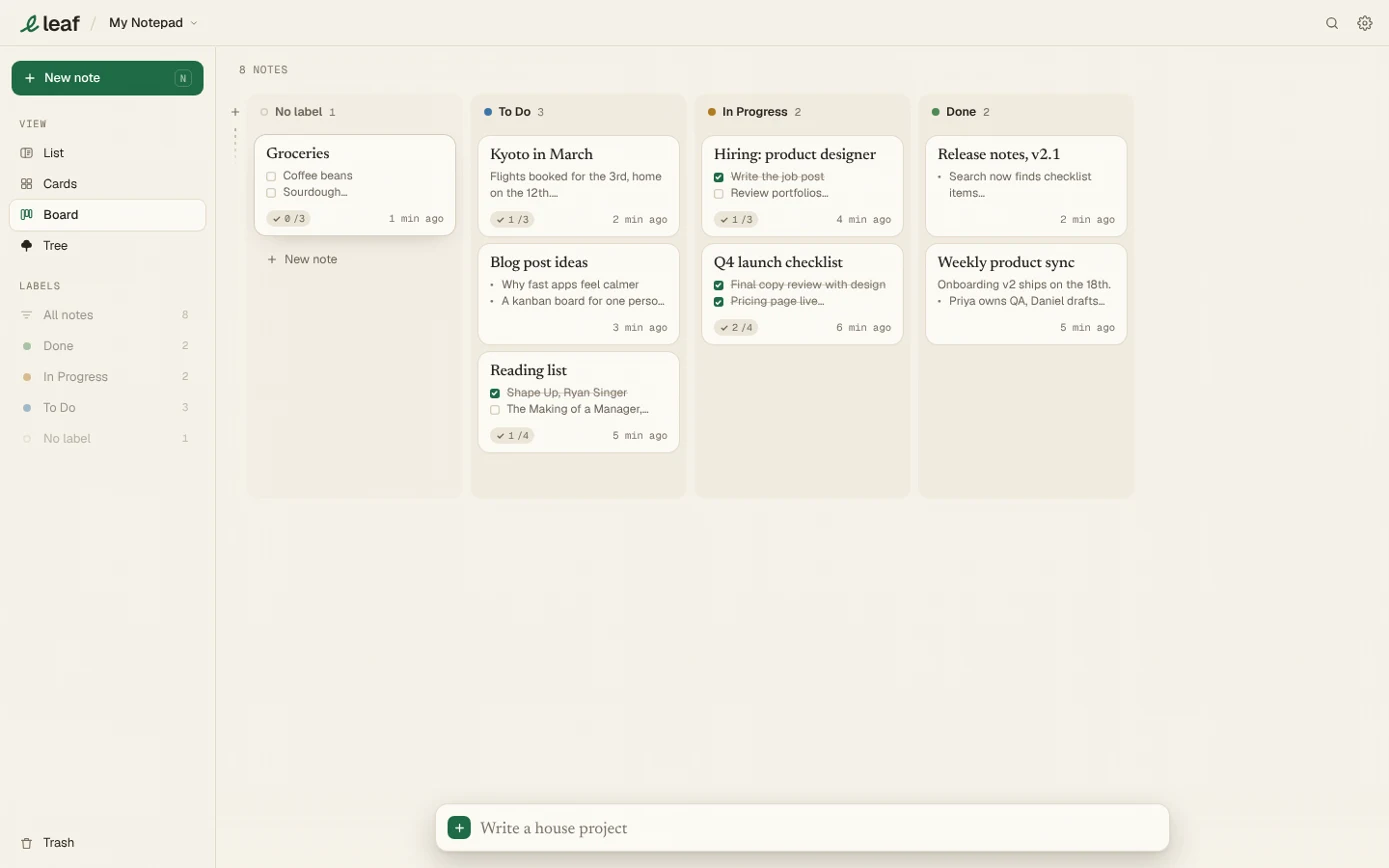
Leaf is a notepad that lives in Chrome’s toolbar, and every notepad in it can be seen as a board. It’s free, it works offline, and it doesn’t ask you to sign up, so you can have a board running in a couple of minutes.
- Add Leaf to Chrome from the Chrome Web Store and open it from the toolbar.
- Switch the view to Board, at the top of your notes.
- You’ll find three columns ready: To Do, In Progress and Done. New installs come with them.
- Write a note for each task. Notes without a label wait in the first column, called No label, until you drag them where they belong.
Each column on the board is a label. Drag a card into In Progress and it takes that label. Drag a column by its header and the whole column moves, cards and all.
In Leaf: A card can hold more than a title. Add a checklist inside a note, and the card shows how many of its items are ticked, like 2/5. It’s a quiet way to see how far along a bigger task is without opening it.
Keep it working
A board only helps if you look at it. The good news is that it takes very little to keep one alive.
Two minutes in the morning
Open the board before you start. Move yesterday’s finished cards to Done, pick one or two cards from To Do and move them into In Progress. That’s your day.
Two minutes at the end of the day
Look at what’s in progress. Anything you finished goes to Done. Anything that stalled, ask why: is it waiting on someone, or is it too big? A card that’s too big to finish in a few days should be split into smaller ones.
Pick a limit, and keep it
Choose a number for In Progress and stick to it. Two or three is a good start for most people. When the column is full, the only way to start something new is to finish something first. It feels strict for a day or two, then it feels like relief.
Clear Done once a week
Done fills up, and that’s the fun part. Once a week, look back at what you finished, then tidy it away. In Leaf you can delete finished cards with the usual Undo, or keep them and simply let the column grow. Some people like the record.
Ideas for your board
A board isn’t only for work. Once you have the habit, the same three columns fit almost anything:
- A job search: applied, interviewing, heard back.
- Reading: to read, reading, finished.
- A home project: to buy, in progress, done.
- A side project: ideas, building, shipped.
You can rename any column to fit. In Leaf, a label is just a name and a colour, so changing To Do into Applied takes a second.
In Leaf: The free plan gives each notepad up to three labels, which is exactly one board. With Leaf Pro you can have as many labels as you like, and separate notepads for separate boards, synced across your computers.
Start small
The best board is the one you actually open. Start with three columns and today’s work, keep In Progress short, and give it a week. Here’s the setup, as a checklist:
- Add Leaf and switch to the Board view
- Write a card for each thing on your plate
- Move one or two into In Progress
- Finish one, and drag it to Done
That last one is the best part. Enjoy it.