Fold headings and see a note's contents
Answer
Point at a heading in a note open large and press its arrow to fold it. Notes with three or more headings show their contents as small lines in the left margin.
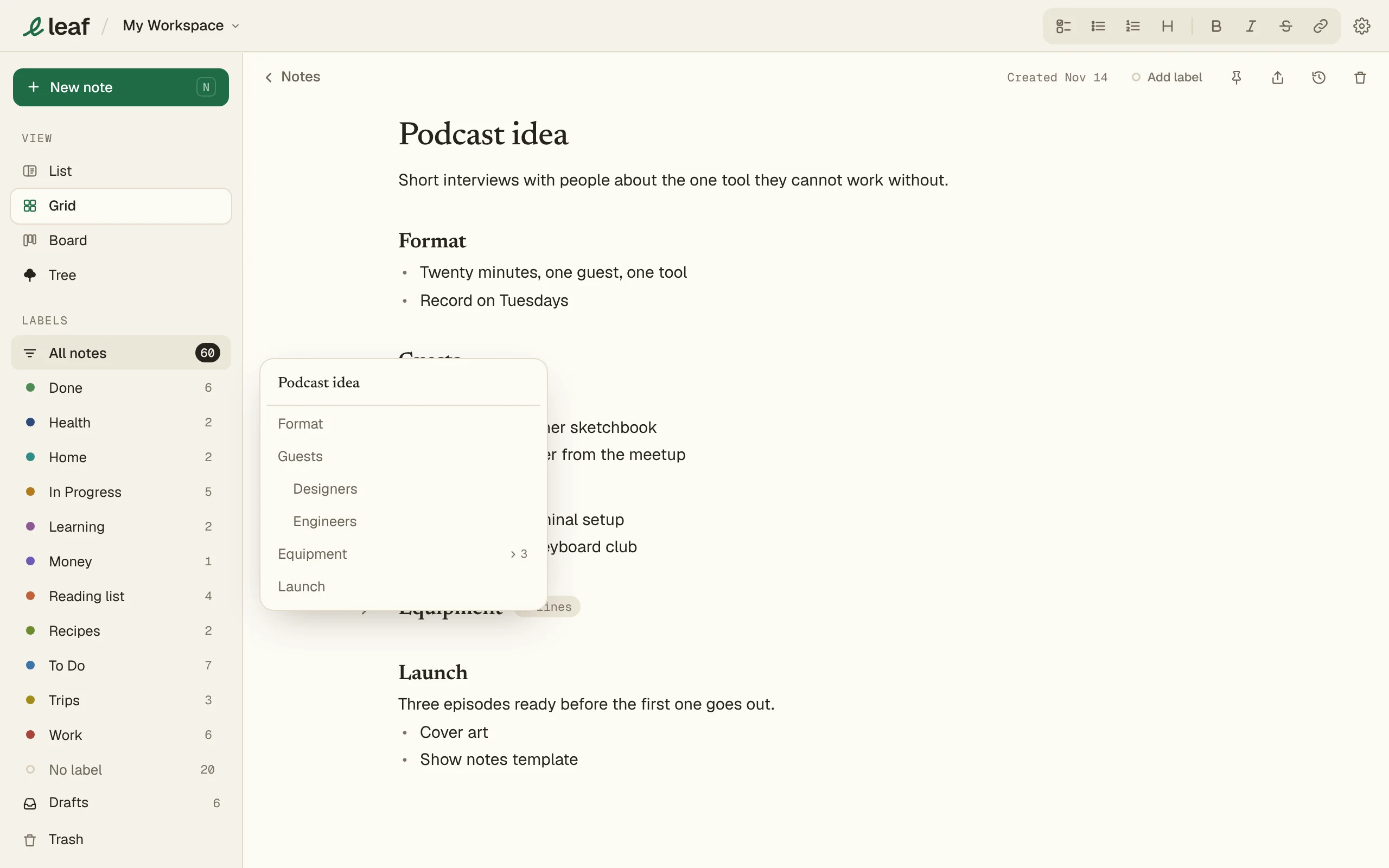
Fold a heading
- Open a note large.
- Point at a heading. An arrow shows beside its handle, left of the heading.
- Press the arrow. The lines under the heading fold away, up to the next heading at the same level.
- Press the arrow again, or the line count beside the heading, to unfold it.
Hold Alt (Option on a Mac) as you press the arrow to fold or unfold every heading at the same level.
Jump with the contents
- Write three or more headings in a note, then open it large.
- Point at the small lines in the left margin. The contents opens.
- Press a heading to jump to it. A folded section opens first.
The line for the heading you’re reading is darker.
Keep the contents open
- Point at the small lines in the left margin.
- Press Keep it open. The headings stay listed in the margin, in every long note.
- To go back, point at the list and press the button beside In this note.
Keep it open shows only when the window has room left of the text. Where there’s less room, the contents stays as small lines. Where there’s no room at all, such as a note open beside the list in a smaller window, press the contents button in the note’s bar.
Good to know
- A heading’s level is how many
#it was written with. A section runs to the next heading at the same level or higher, so a##heading folds inside the#heading above it. - Typing into a folded section, or pressing Enter at the end of a folded heading, opens it.
- Dragging a folded heading by its handle moves its whole section.
- Each note keeps its folds on this device when you close and reopen it.
- Folds and the contents work in the large view with a mouse or trackpad. On a phone, use the contents button in the note’s bar.
FAQ
Does folding change my note?
No. Folding only hides lines on screen. The note's text stays the same.
Do folds sync to my other devices?
No. Each device keeps its own folds.
Why don't I see Keep it open?
Kept open needs room left of the text. In a narrower window the contents stays as small lines.