Version history
Answer
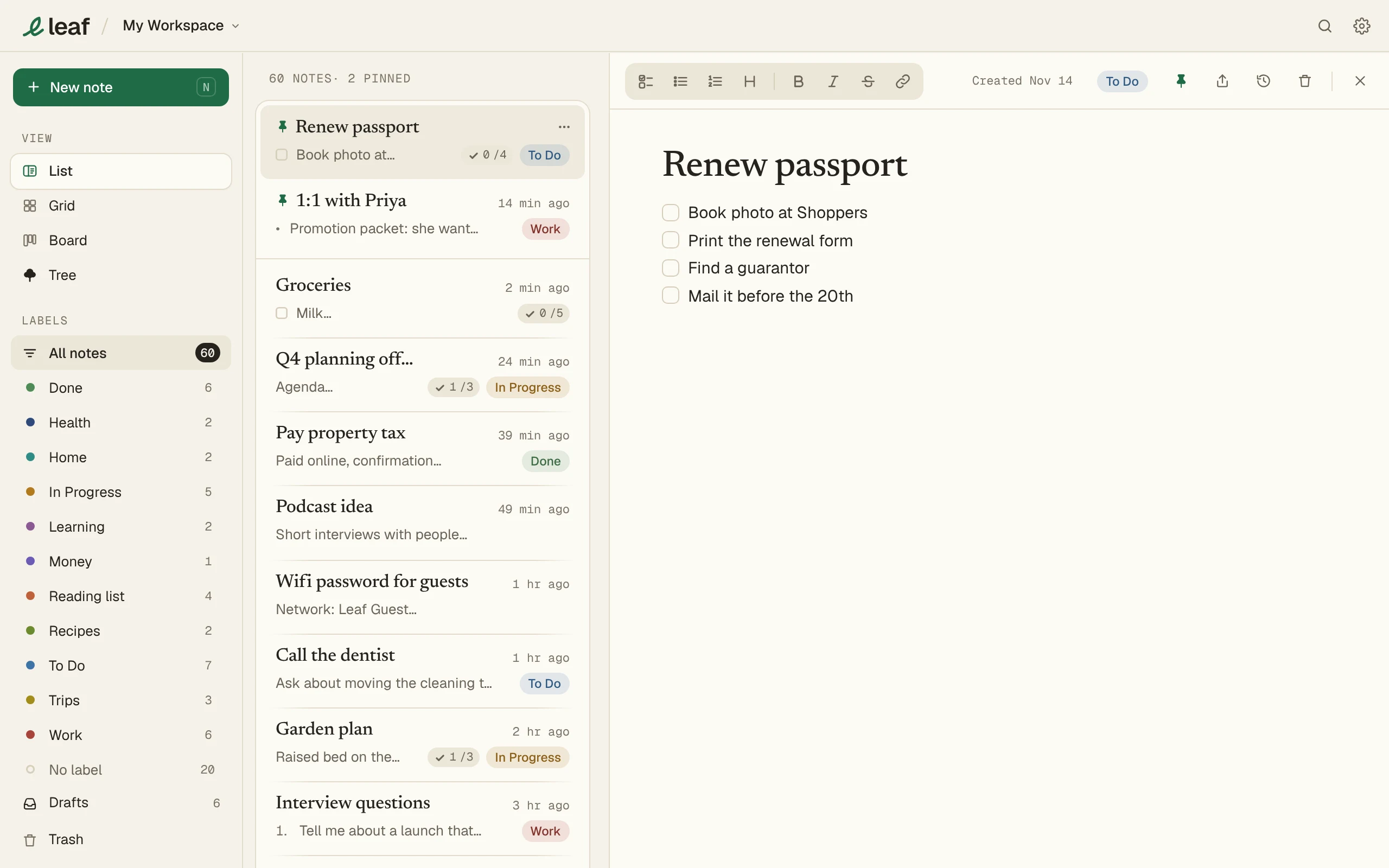
Open a note large and press Version history. The last day is free. Older versions need Leaf Pro.
Steps
- Open a note large.
- Press Version history in its bar. Where the bar is narrow, such as on a phone, press ⋯ first.
- Pick a version to see it, then restore it if you want.
Good to know
- Leaf keeps a version after a pause in writing, before a big cut, and before a restore.
- Each device keeps its own versions for 90 days, up to 100 per note.
- Free opens the last 24 hours. Leaf Pro opens all of them.