Workspaces
Answer
Workspaces keep separate sets of notes and labels. Switch with the name beside the Leaf logo, and give each one an emoji to tell them apart.
Leaf used to call these notepads. Only the name changed: your notes, labels and links stay as they were.
Switch workspaces
Click the workspace’s name beside the logo (like My Workspace) and pick another.
Make a workspace
Open the workspace list beside the logo and choose New workspace. Name it and press Create workspace (or Enter). It opens straight away, its emoji beside the logo where you’ll find it again, ready for its first note.
Beside the name is its emoji. Once you’ve typed a name it suggests one, like ✈️ for “Trip to Lisbon” (📒 when nothing fits). Click it to pick another.
Give a workspace an emoji
- Open the workspace list beside the logo.
- Point at a workspace: a faint face shows where its emoji goes. Click it (or the emoji, to change one).
- Search or pick one. People emoji take the skin tone chosen at the bottom.
The emoji shows before the workspace’s name, beside the logo and in the list. To take it off, choose Remove emoji at the top of the picker. Removing an emoji never touches the workspace or its notes.
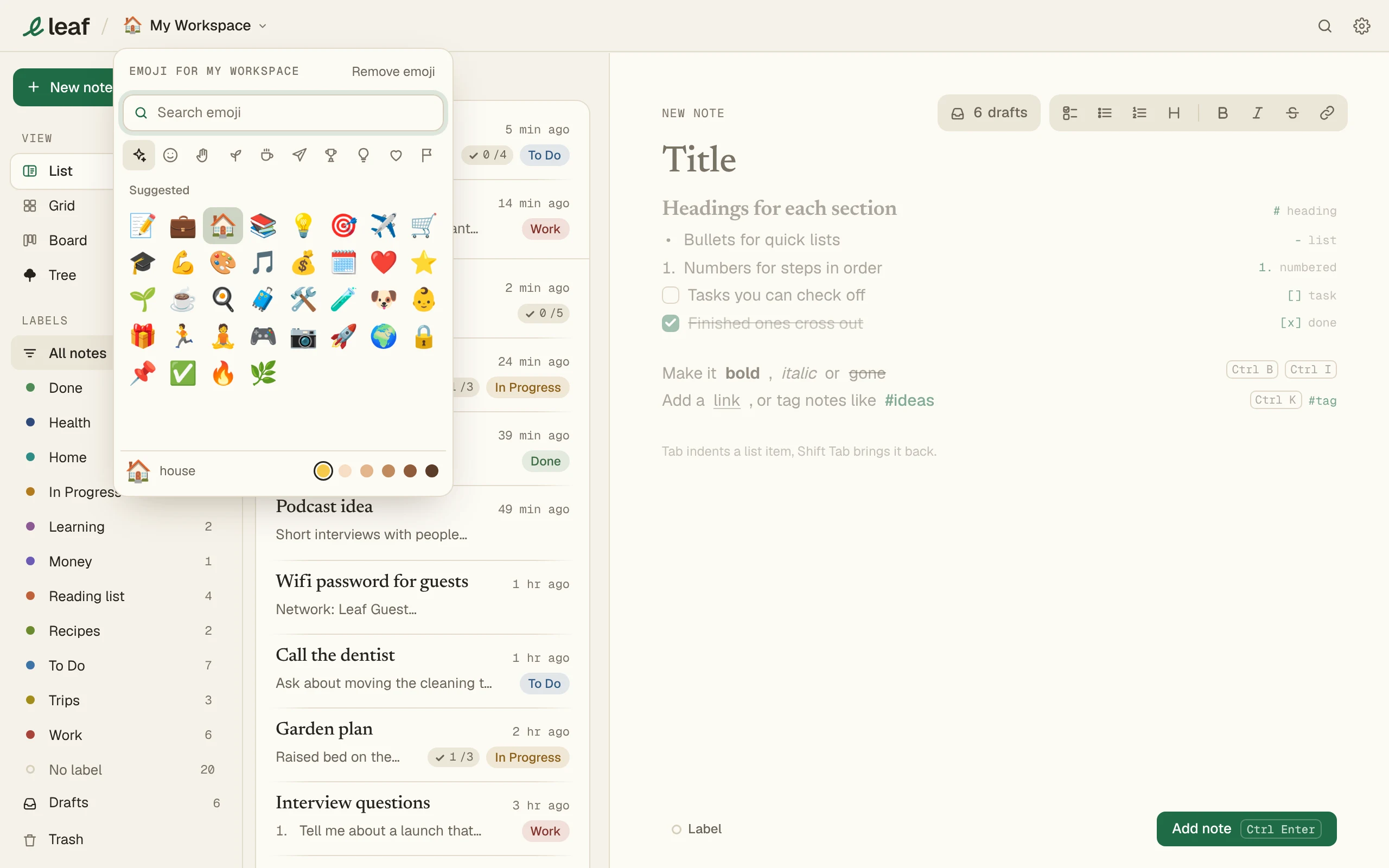
Each computer draws emoji in its own style (Apple’s on a Mac, Microsoft’s on Windows), so the same emoji can look a little different from one to the next. Windows doesn’t draw country flags, so the picker leaves them out there.
Free vs Pro
| Free | Leaf Pro | |
|---|---|---|
| Switch and delete workspaces | Yes | Yes |
| Rename My Workspace | Yes | Yes |
| Make new workspaces | No | Yes |
| Rename other workspaces | No | Yes |
| Emoji on My Workspace | Yes | Yes |
| Emoji on other workspaces | No | Yes |
Delete a workspace
Go to Settings > General > Delete this workspace. My Workspace can’t be deleted.