List, Grid, Board and Tree
Answer
Leaf shows the same notes four ways. Switch with the view switch above your notes, or the sidebar in a full tab.
| View | Best for |
|---|---|
| List | Scanning titles, with the open note beside them. |
| Grid | Seeing more of each note, as cards. Labels show as folders. |
| Board | To-do lists. Each label is a column. |
| Tree | Seeing your workspace grow. See The Tree view. |
List
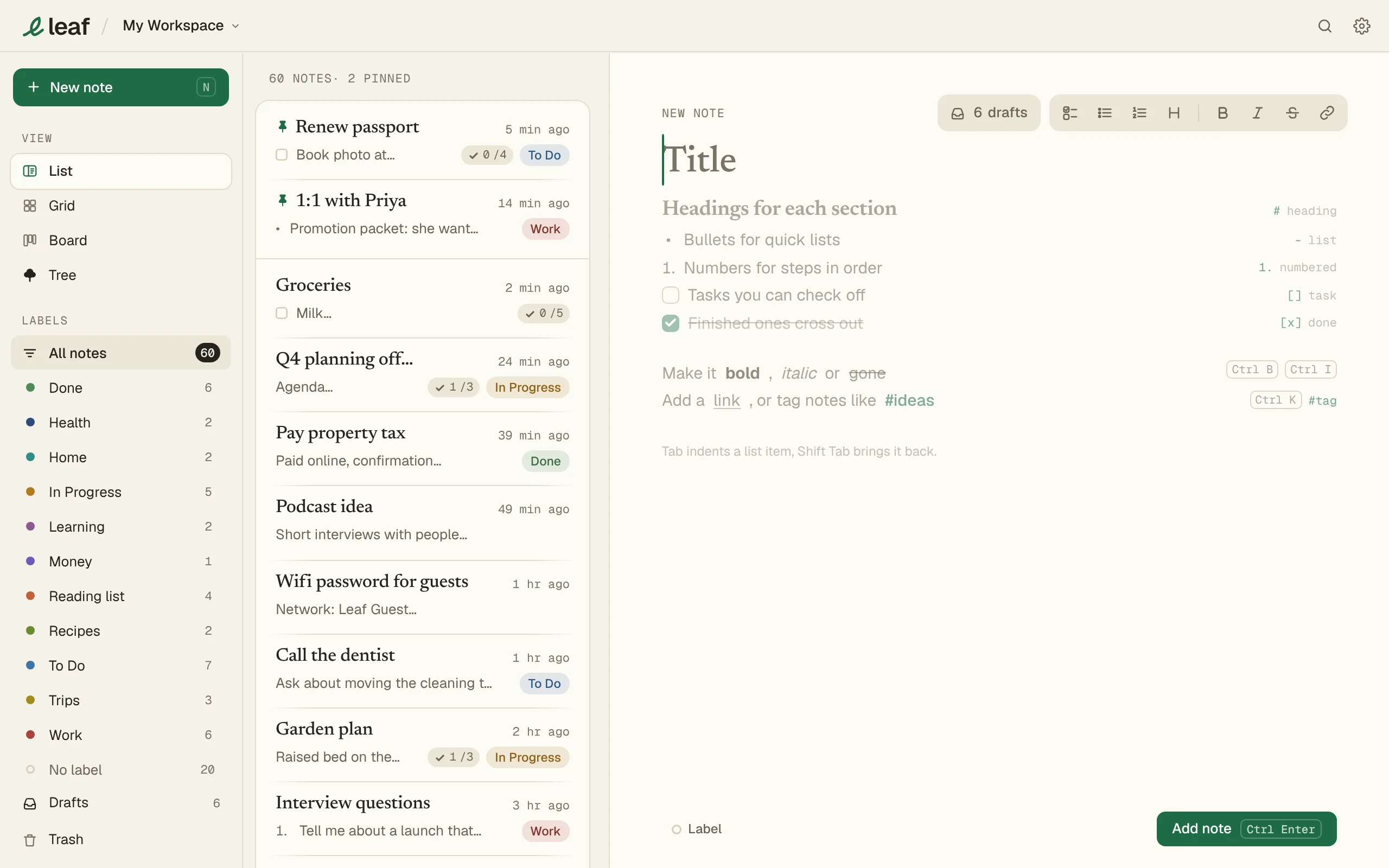
- Titles in a list. In a full tab, the open note shows beside them.
- In a full tab, drag the line between the list and the note to make the list wider or narrower. Double-click the line to go back to the automatic width.
Grid
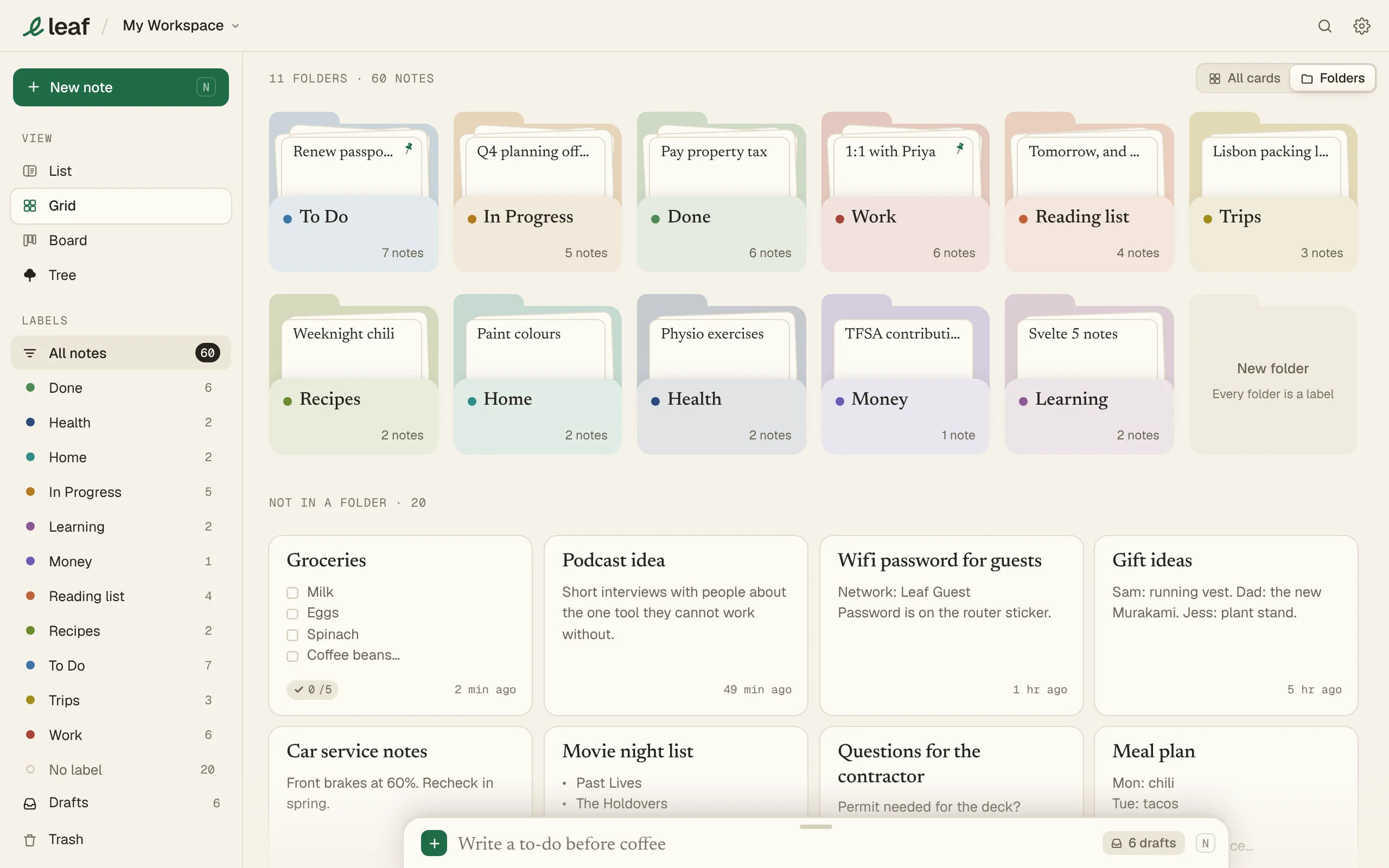
- Labels appear as folders. Drag a card onto a folder to give it that label.
- Switch between Folders and All cards with the icons beside the view switch.
Board
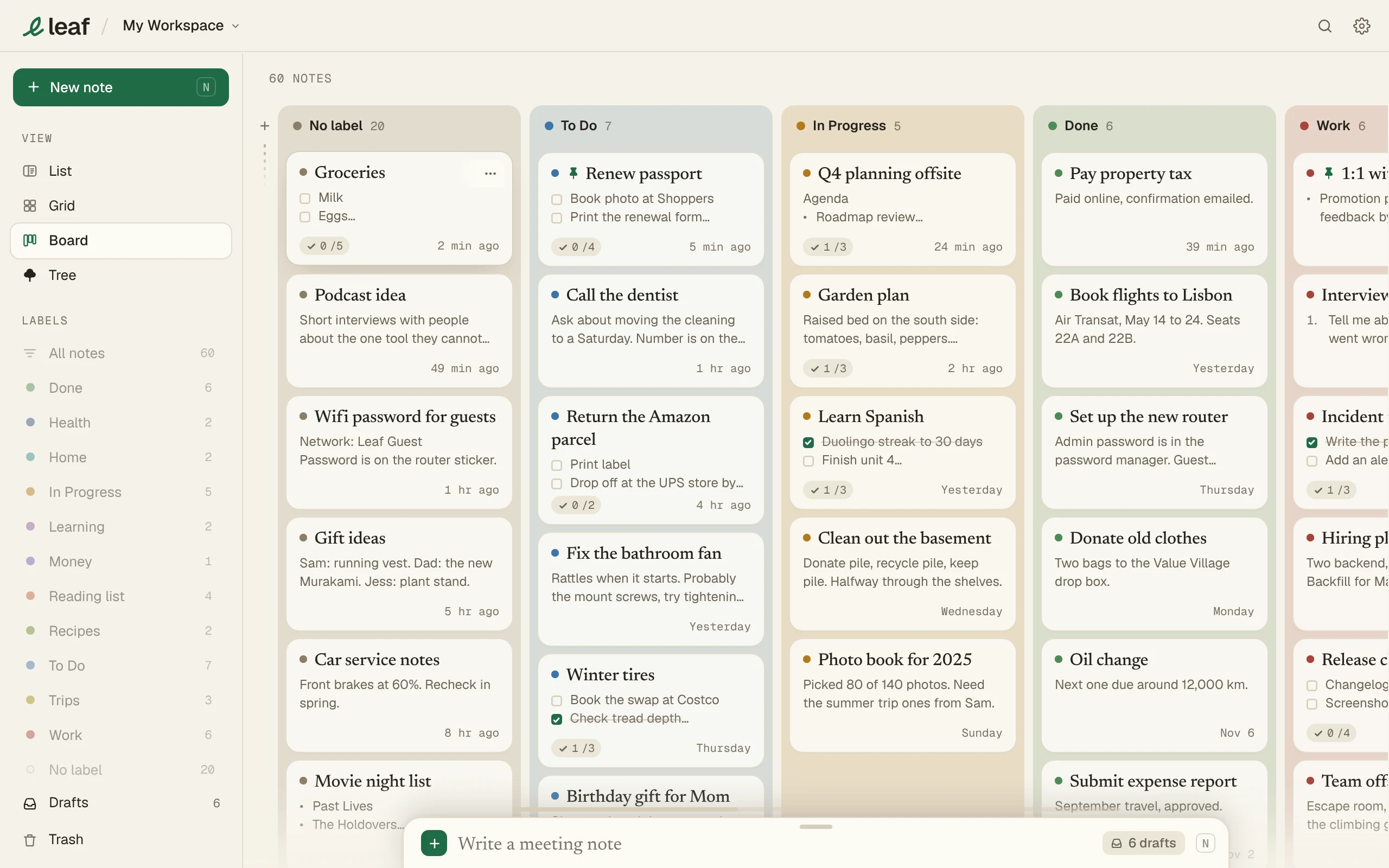
- Drag a card to another column to change its label.
- No label is always the first column.
- Press + at the left edge to add a column. Each column is a label.
- Drag a column by its header to reorder it.
Good to know
- Deep in a long List, Grid or Board, scroll back up and Back to top shows under the bar. Press it to glide to the top. It shows only after you’ve scrolled more than three screens down, and goes when you scroll down again or leave it for a few seconds.